01Where it goes
Last in line. First thing they hear.
Last on your master (stereo out) bus, after everything else. Leave some headroom in the mix: peaks around −6 dBFS are ideal, and nothing should clip before LENS MASTER. Turn off any limiter you had on the master bus.
02First master in five minutes
Before you add, listen again.
- Click the preset name and pick a starting point: a target (e.g. Weight), a platform (Spotify -14) or a character (Hearth Pump).
- Play the loudest part of your song.
- On the MASTER page, set the TARGET knob to the loudness you want and click MATCH TARGET: the limiter gain is set so the song lands on it.
- Switch LEVEL MATCH on and flip BYPASS: now you hear what the chain does to the tone, not just the volume.
- Happy? Switch LEVEL MATCH off before you export.
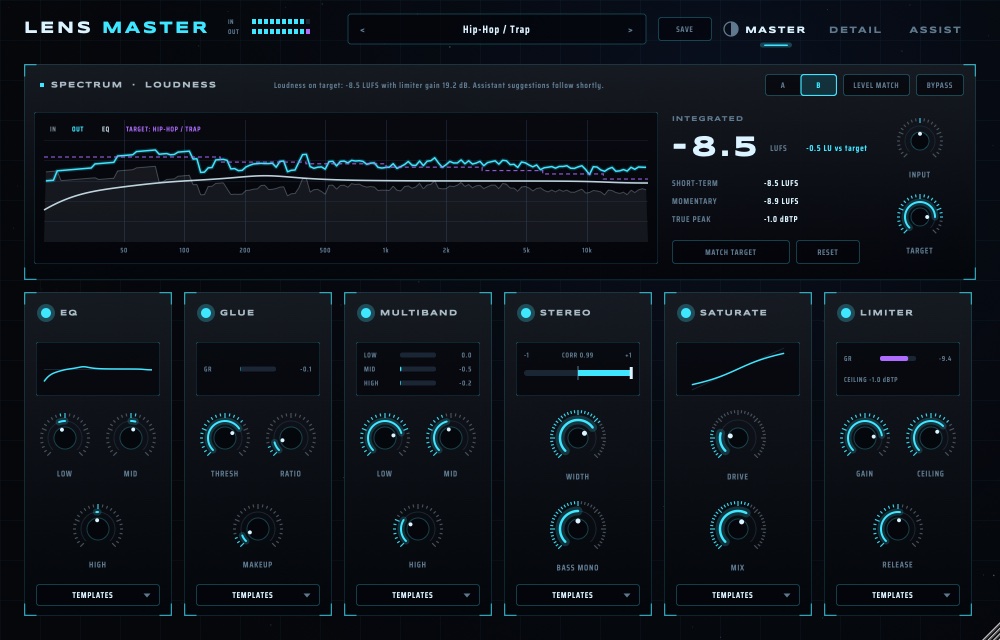
03Reading the screen
See where the light falls.
- Spectrum: IN (grey) is your mix, OUT (bright) the master, EQ the curve you are applying, and the dashed violet line the target curve. Where OUT sits far from the target, that band needs attention.
- Loudness: INTEGRATED (the whole song so far), SHORT-TERM (3 s), MOMENTARY (0.4 s) in LUFS, and TRUE PEAK in dBTP. RESET starts the measurement over.
- A / B: two complete settings to compare. Auto-Master writes into B and leaves your A alone.
- Each module shows its own meter: gain reduction for GLUE, MULTIBAND and LIMITER, correlation for STEREO.
04The six modules
Six small decisions.
Every module has its own on/off light and a TEMPLATES menu that sets only that module (there are 65, and you can save your own). DETAIL shows every control.
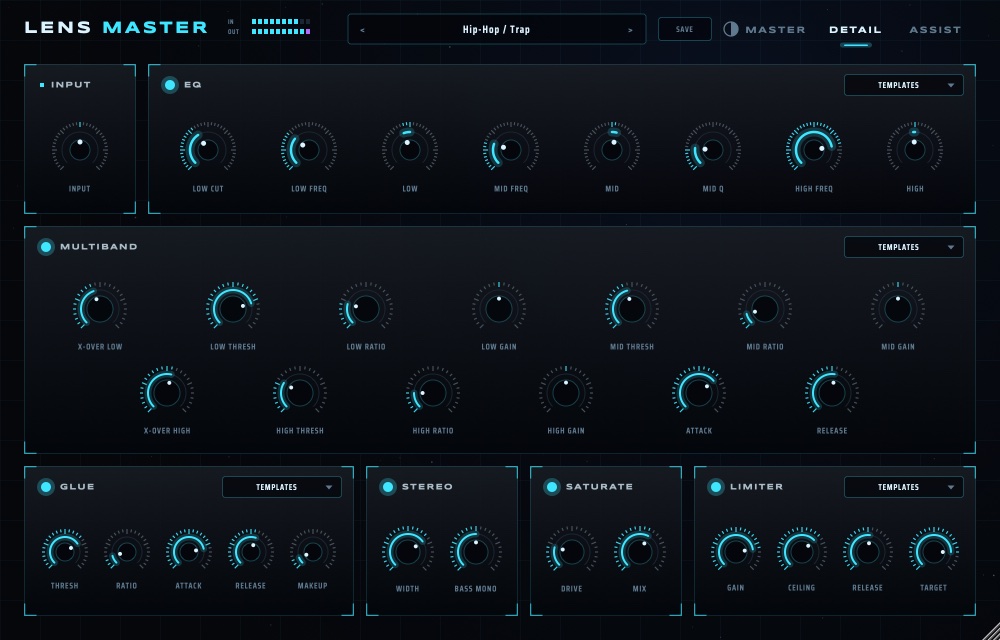
| Module | For |
|---|---|
| EQ | Broad tone: LOW CUT, a low and a high shelf, a mid band with Q. |
| GLUE | A gentle bus compressor that makes the mix move as one. 1–3 dB of reduction is plenty. |
| MULTIBAND | Three bands with their own threshold, ratio and gain: control a boomy low end without touching the vocal. |
| STEREO | WIDTH for the sides, BASS MONO to keep the low end centred and solid. |
| SATURATE | Warmth and density, with MIX to blend it in. |
| LIMITER | GAIN pushes into it, CEILING is the true-peak maximum (−1 dBTP is safe for streaming), RELEASE sets how it breathes. |
OrderInput → EQ → GLUE → MULTIBAND → STEREO → SATURATE → LIMITER. Saturation and the limiter run oversampled, and the ceiling catches inter-sample peaks, so it holds after MP3 or AAC encoding.
05Auto-Master and the Assistant
A second pair of ears that explains itself.
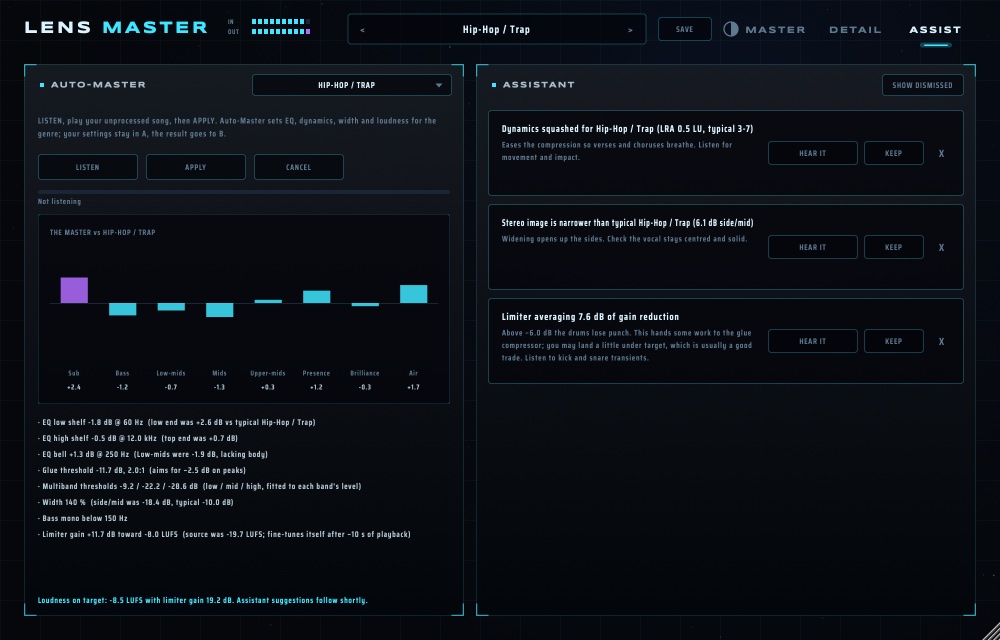
- Open ASSIST and choose a target in the TARGET menu.
- Press LISTEN and play your unprocessed song, all of it or at least the loudest part.
- APPLY: Auto-Master sets EQ, dynamics, width and loudness for that target, shows the band-by-band comparison and lists every change it made. The result goes to B; your settings stay in A.
- The Assistant keeps listening and writes notes: "dynamics squashed", "stereo image narrow", "limiter working hard". HEAR IT switches the suggested fix in (click again to switch back), KEEP commits it, X dismisses it.
06Loudness targets
Every room has its own volume.
| Where | Aim for |
|---|---|
| Spotify, YouTube, Tidal, Amazon | about −14 LUFS integrated, −1 dBTP |
| Apple Music | about −16 LUFS |
| Club systems, the loudest styles | −9 to −7 LUFS (the platforms will turn it down; it is a style choice) |
| Podcast / audiobook | −16 / −18 LUFS |
| Broadcast (EBU R128) | −23 LUFS |
The STREAMING presets set these for you.
07Check your work
Listen from the next room.
- Compare at the same loudness (LEVEL MATCH) before deciding the master is "better".
- Listen in mono once: BASS MONO and the correlation meter warn you when the low end would vanish.
- Play the loudest and the quietest part. If the chorus is no louder than the verse, ease GLUE or the LIMITER.
- Check on headphones, laptop speakers and a phone.